
Admin Settings
Users Last Active Column
(For on-premises clients) When an administrator selects Admin > Users to manage users and user groups, the date and time of the most recent activity of each user is now shown to the right of the username.
This makes it possible for an administrator to monitor sign-in activity and see which users have not yet activated their accounts.
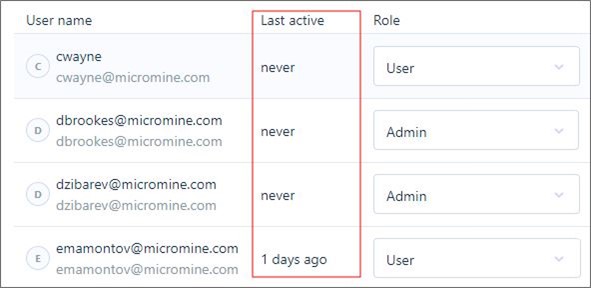
Users who have not yet activated their accounts are shown as "never".
File Type Extensions
As an administrator, when you edit a file type on the Admin > File Types tab and specify one or more file extensions for a file type, the DOT that precedes a file extension is now optional. For example, .dat or dat is acceptable.
File Management
Comments & Mentions
You can now use an Info > Comments pane to view or enter comments about the file you have selected in your Nexus workspace library or Nexus project. Note however, that you cannot comment on a file until it has been uploaded to Nexus.
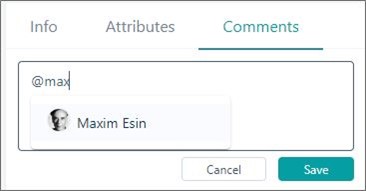
Within a comment, you can also use the @ symbol to mention another user by name. Users with a name that matches the text you enter are available for selection:
When you select a user, the user's name is embedded into the comment:
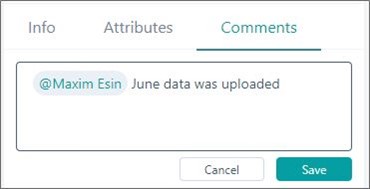
The user who was mentioned will receive an email notification when the comment is saved:

Browser: Multiple File Downloads
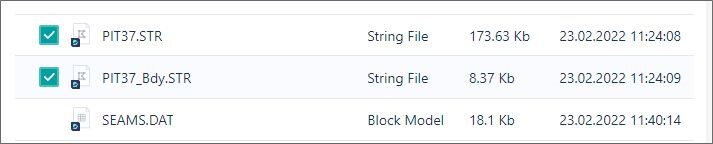
In your Nexus workspace library or project browser, you can now download multiple files using the selection check boxes to the left of each file name:
Project Integration
URL Specification
Micromine Origin & Beyond integration with Micromine Nexus requires a connection to a server. The connection is now more flexible and the URL you enter can either be an external address (cloud) or a local address (on premises).
User Permissions
Request Permissions
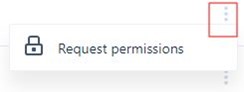
If you do not have permissions or have restricted permissions for a workspace, you can request permissions or request a change in Read, Write, Owner permissions for yourself (and other users).
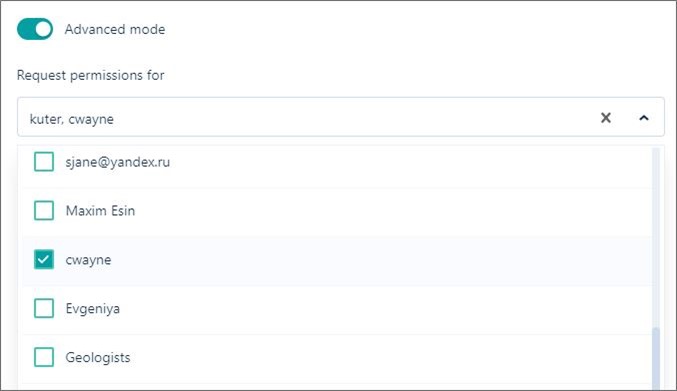
An Advanced mode allows permissions to be requested for one or more users or user groups:
Tasks
Task Progress & Responsibilities
The progress of each task or subtask and the person responsible for the task is now shown in the task list alongside the Gantt Chart:
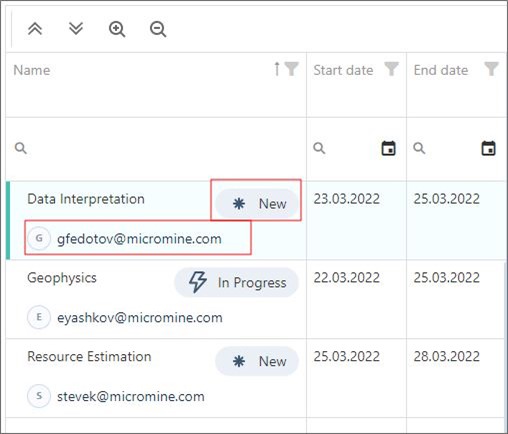
Task progress is also calculated on-the-fly as the subtasks of a task are either created or modified.
Sort Tasks
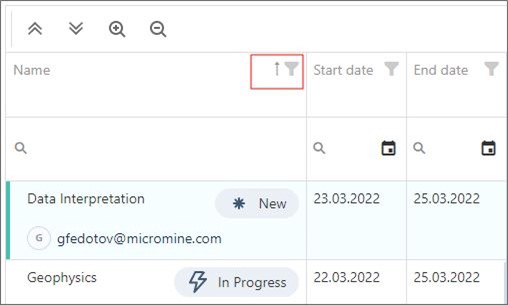
You can now sort tasks in Ascending or Descending order of Name, Start Date or End Date. An arrow in the column header indicates the active sort order:
Date Validation
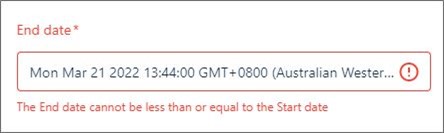
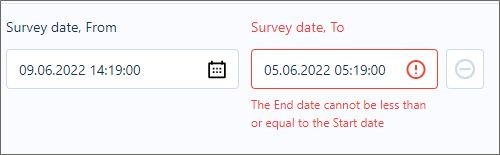
Date validation has been added for the FROM and TO dates specified for a task or sub task:
Task Attributes
When you create or edit a task, you can now select from a list of attributes that have been configured globally.
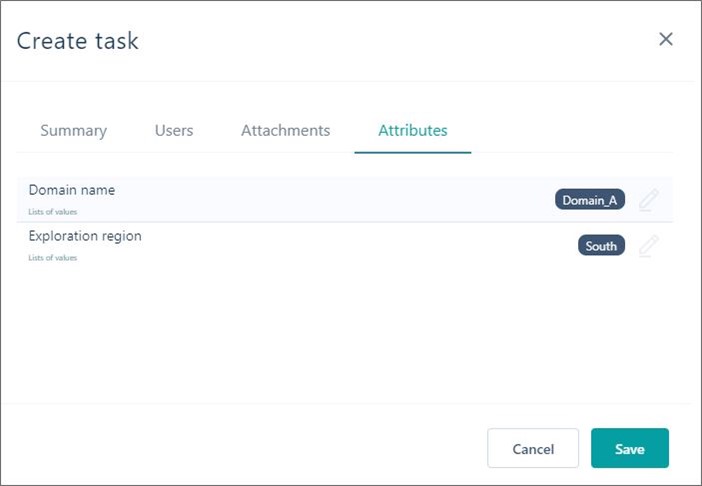
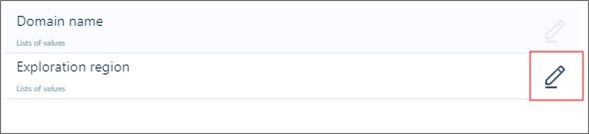
Click the Edit icon to the right of an attribute row to enter or select an attribute value:
User Support
What's New
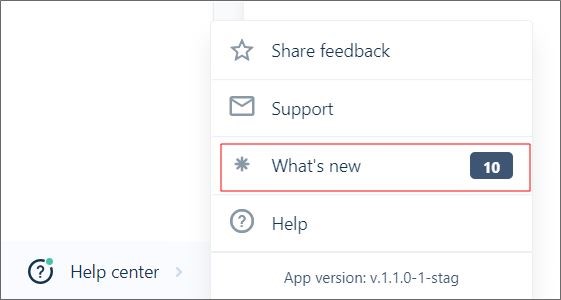
A small green circle on the Navigation menu Help Centre logo indicates that new and improved features were recently added for the current release. Click on the What's New menu option for more information:
User Interface
Icons & Avatars
To improve the appearance of user interface, application icons and avatars are now limited to one standard size.
Search
Date Filter
Date validation has been added for the FROM and TO dates specified on the Search page.
Cancel
You can now press ESC to cancel a search which is in progress.
Comments
0 comments
Article is closed for comments.