Relates to versions - 1.6 (MM25)
- Nexus Scenes: Introducing a new object type called Nexus Scene. This feature allows you to save Viewer views to objects, making it easy to preserve your visualization layers with custom colour coding, transparency settings, and hide options, as well as screen orientation, including section views. You can effortlessly share a single view of your data with your project team.
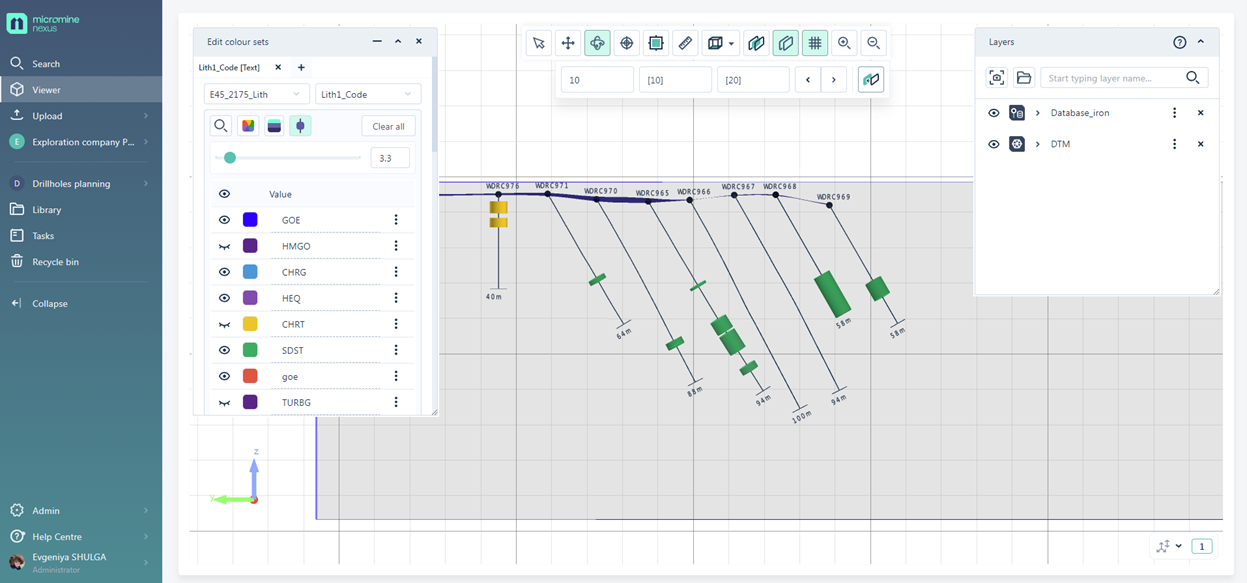
You can upload any view containing multiple objects (e.g., Drillhole and Wireframe objects) to the Viewer. Customize color coding, hide specific Lith values, and set the Solid trace radius. Adjust the screen orientation (e.g., section view), define the viewing corridor, and apply vertical exaggeration if needed.
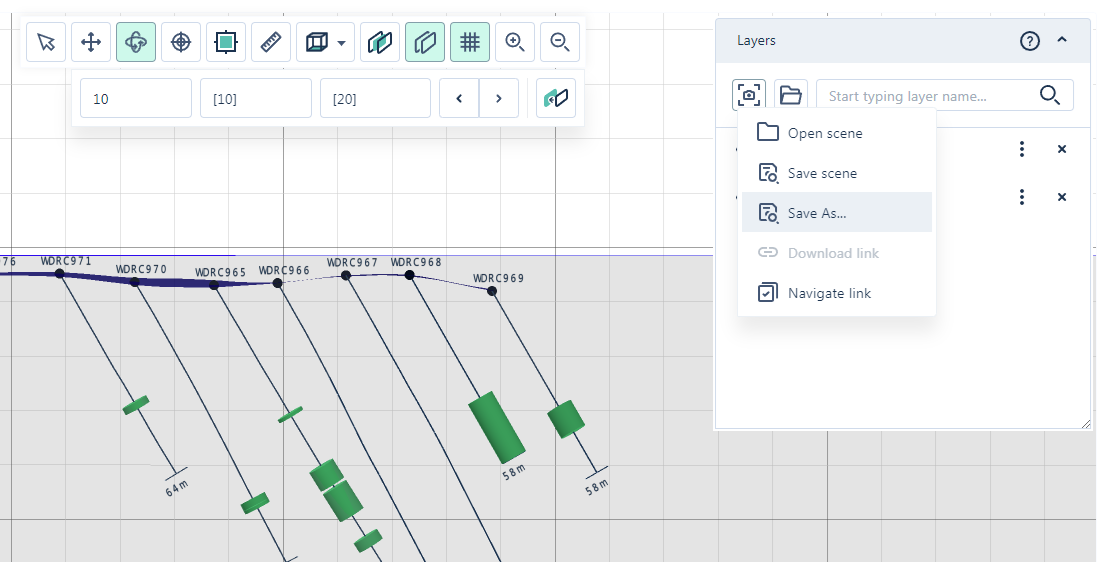
You can then save this scene as an object with a custom name by using the "Save as" option in the Scenes dropdown menu within the Layers panel.
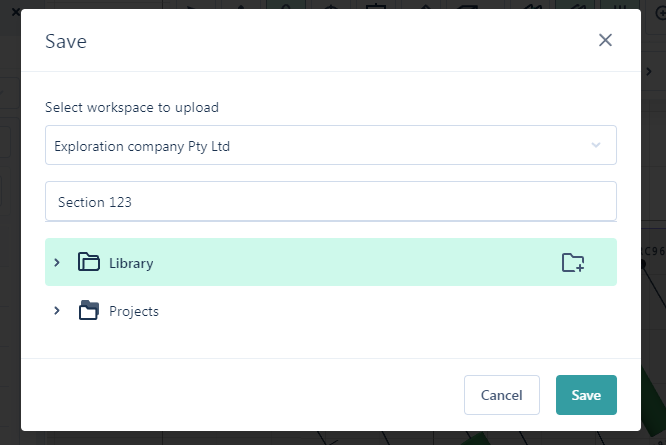
In this window, you can choose the directory for the new object and assign it a name.
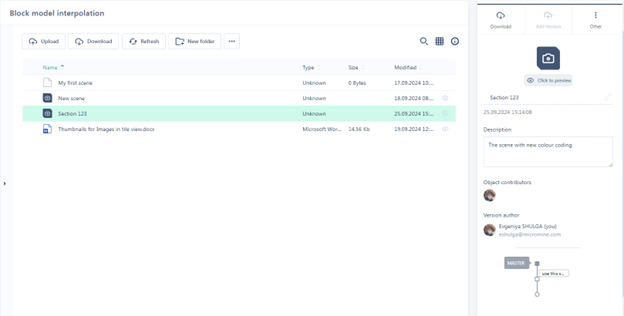
You can easily find this Scene object in the directory later and load it with a single click by using the Preview button.

You can also perform this directly from the Viewer by selecting the "Open Scene" option in the Layers panel.
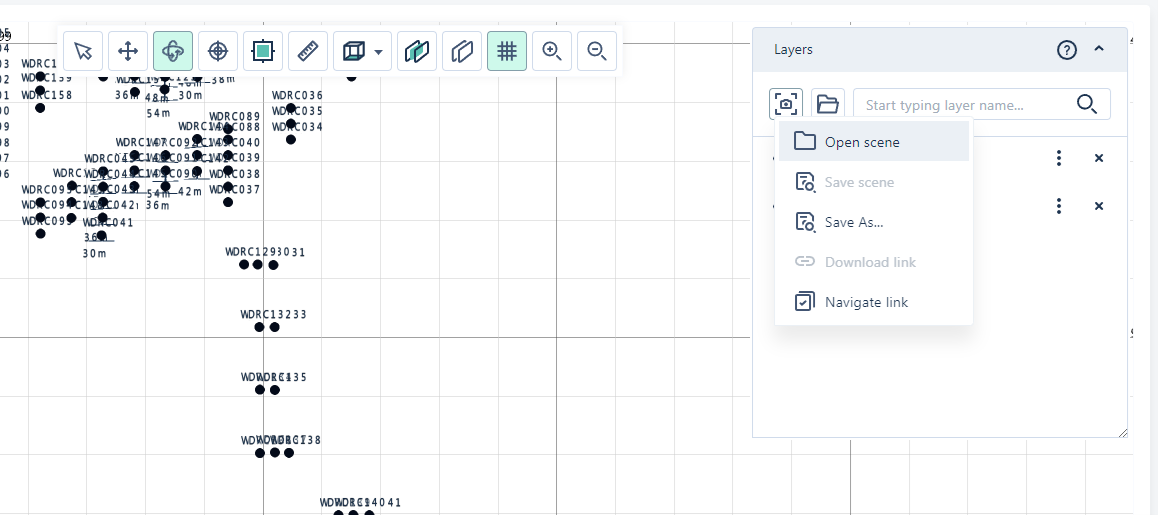
The "Select Object" window in this option displays only Scene objects, streamlining navigation and making it easier to find what you need.
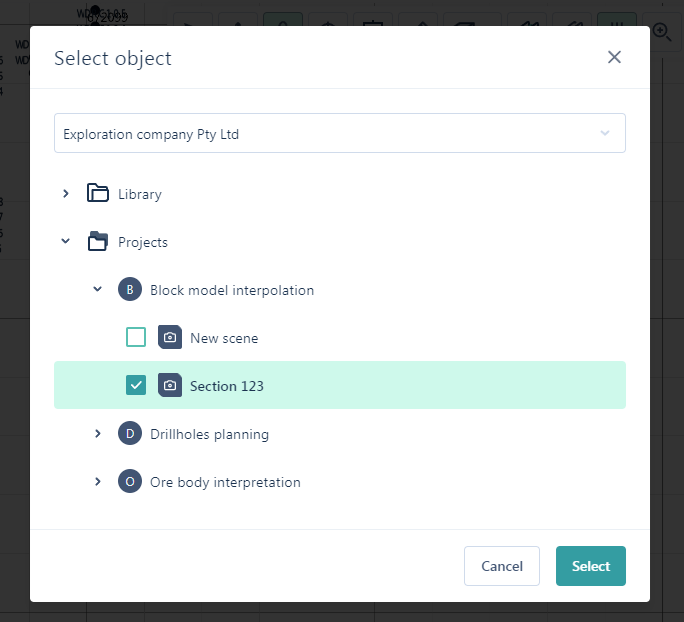
You can make changes to the uploaded scene and save them using the "Save Scene" option in the Layers panel.
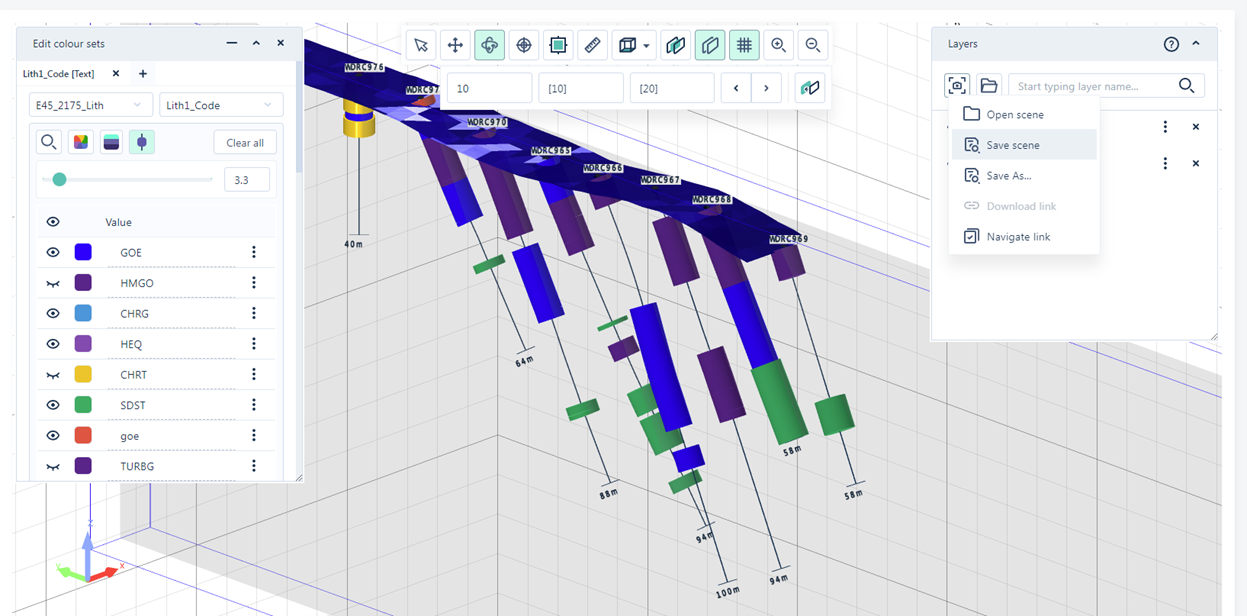
A new version of the Scene object will be created, allowing you to revert to a previous version at any time from the Info side panel. You can also leave comments and provide a description for each version.
If you need to quickly share this scene with your project teammate, you can use the "Navigate Link" option directly from the Viewer here:
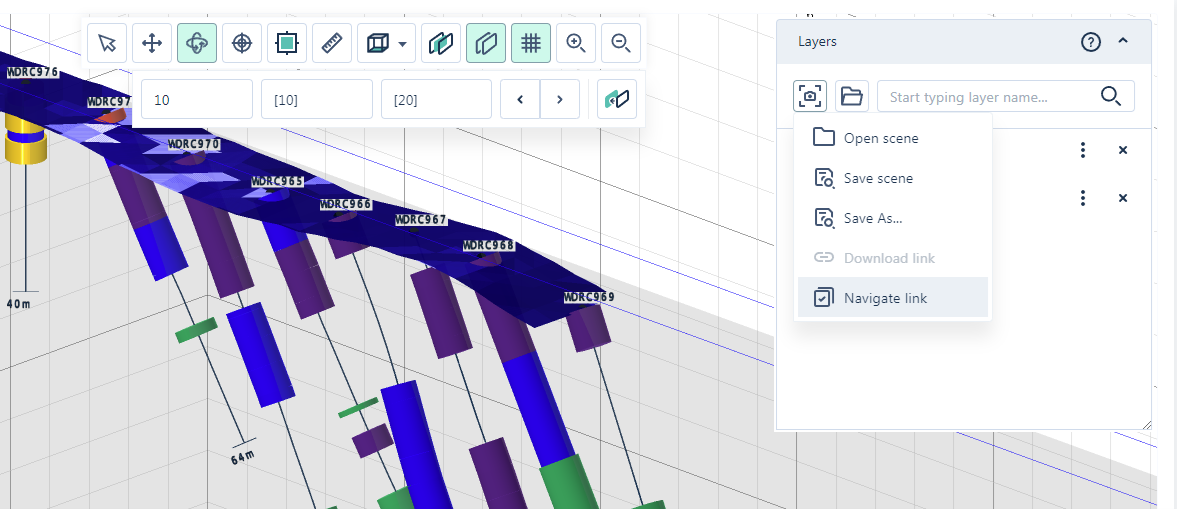
In this scenario, another Nexus user who accesses this link will open the scene directly in the Nexus Viewer.
Alternatively, you can do this from the File Manager by selecting "Navigate Link" from the context menu on this object.
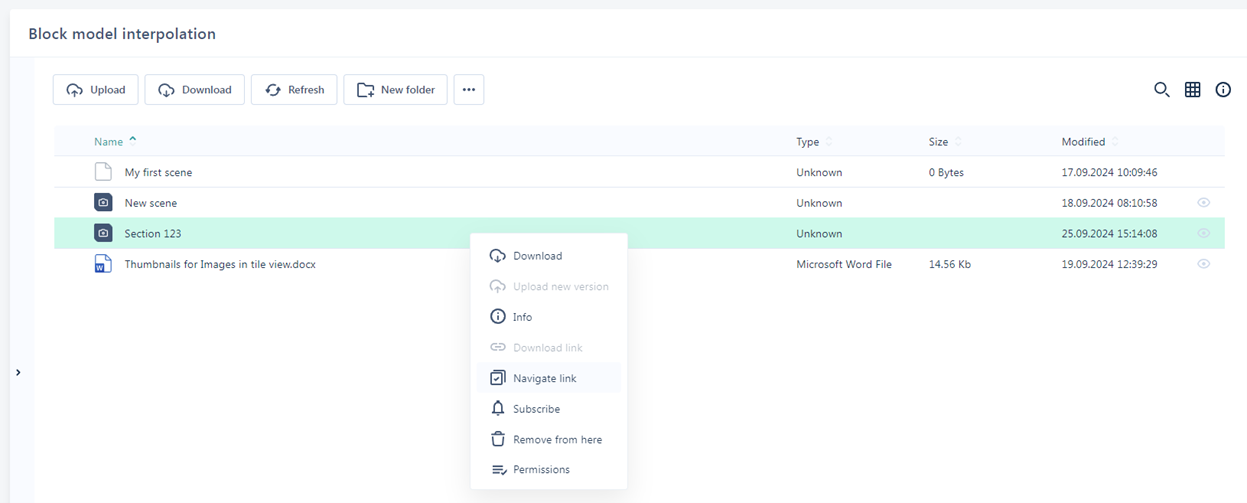
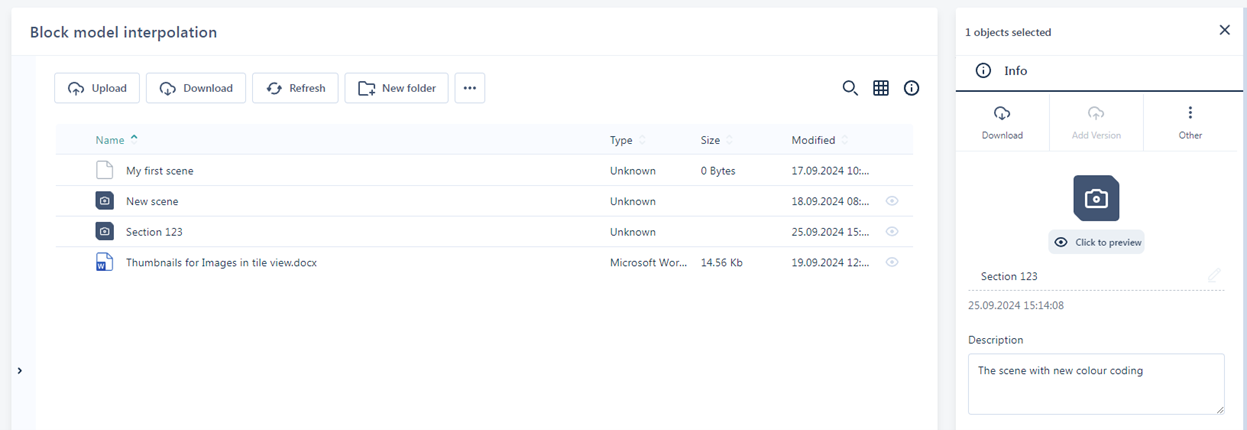
In this case, the location of the Scene object will open with the Info panel enabled. The other user can then use the "Click to Preview" option in the Info panel to open the Scene in the Viewer.
Navigate Links: A new feature that enables users to share direct links to objects in Nexus, whether in the File Manager, Document Viewer, or 3D Viewer. This helps users easily point to file locations or scenes, streamlining collaboration by sharing insights with the team.
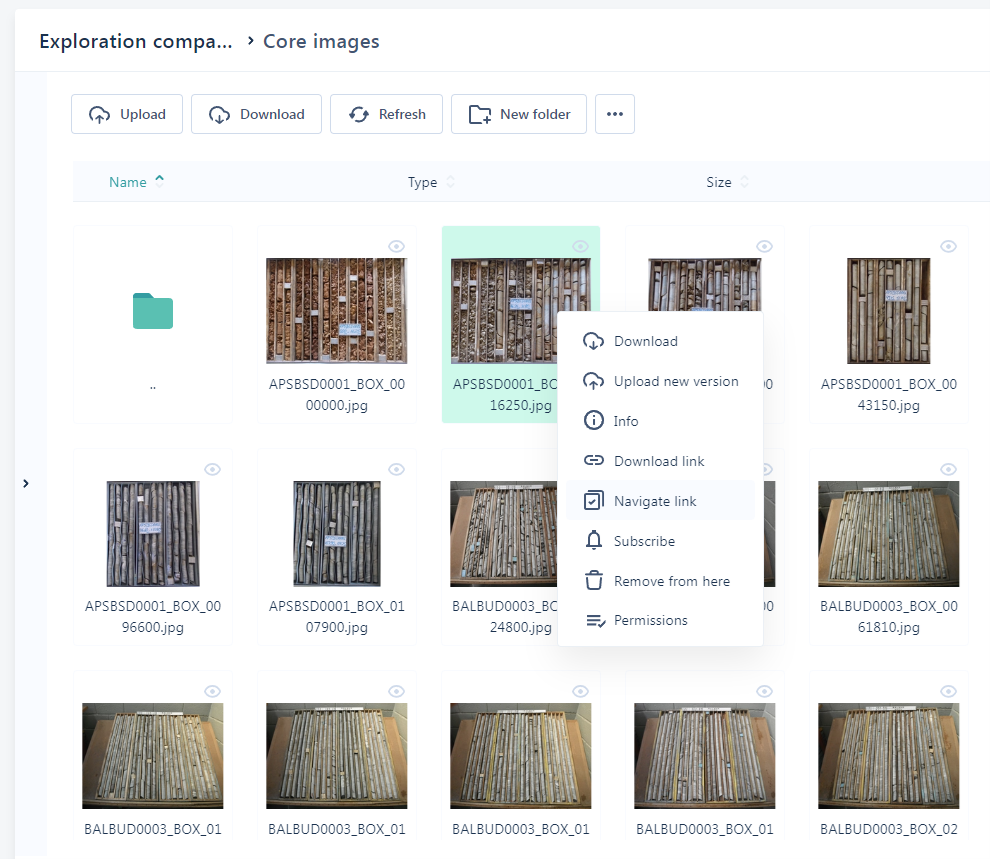
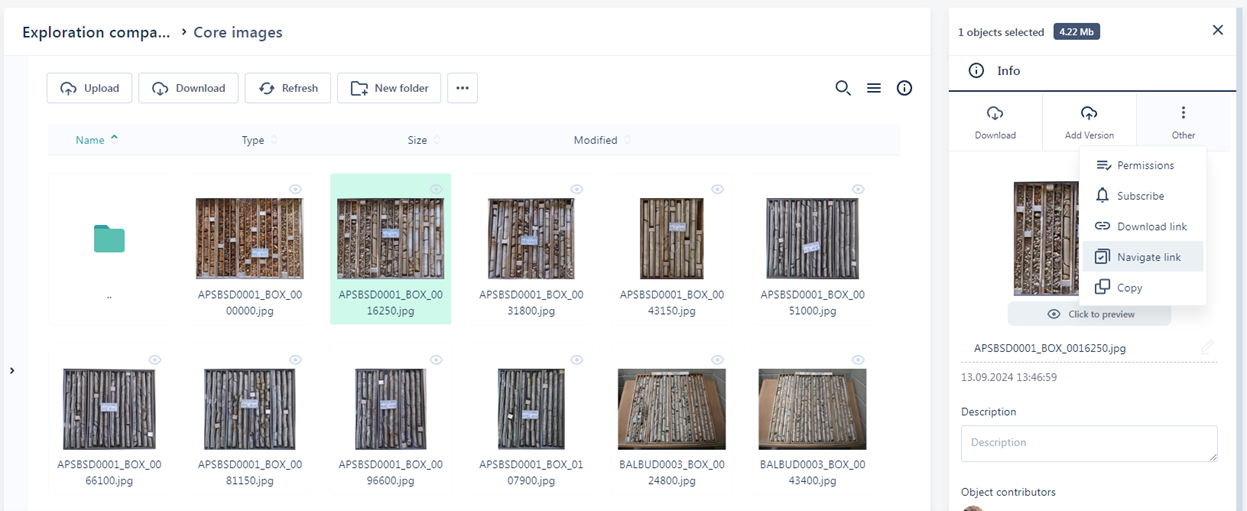
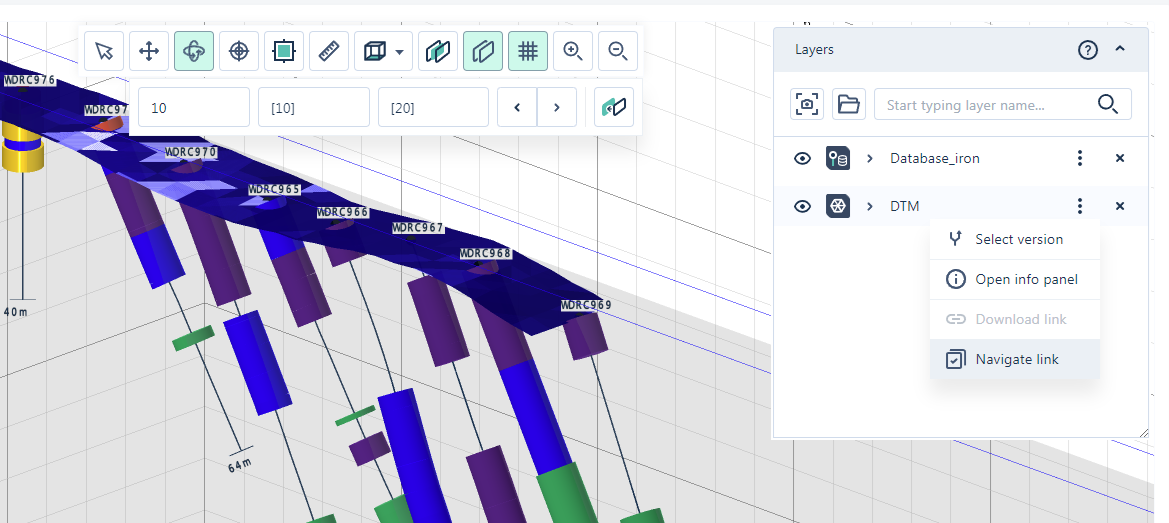
The "Navigate Link" option has been added to the context menu in the File Manager, Document Viewer, and Viewer for both scenes and individual objects. If you want to direct another user to a specific file location in the File Manager, you can use the "Navigate Link" option from the context menu on that file or from the tools in the Info panel.
Simply right-click on the object and choose "Navigate Link" from the context menu:
Alternatively, you can achieve the same result from the Info panel for the selected object.
If you want to share a Navigate Link directly from the Document Viewer, allowing another user to open the document in Document Preview mode, you can do so from within the Document Viewer.
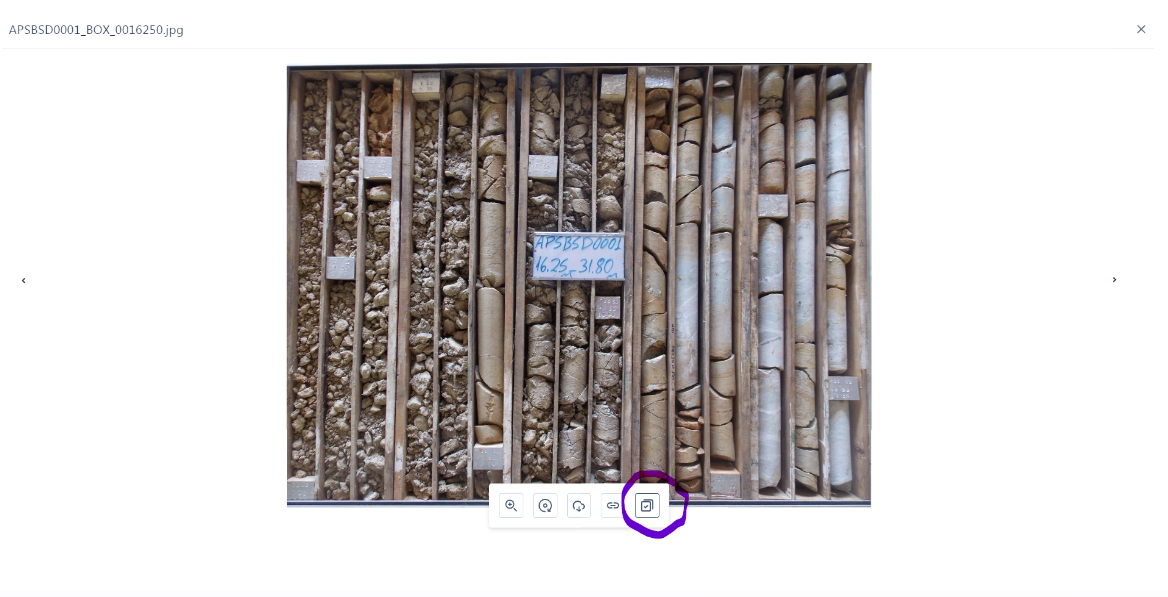
If you want to share a Navigate Link directly from the Viewer, you can do so from the Layers panel for any individual object. In this case, another user can follow the link to open the object directly in the Viewer.
This feature is also available for Scenes, allowing you to create a Navigate Link for the scene to provide another user with easy access directly to the Viewer. This option is available in the Scenes dropdown menu within the Layers panel.
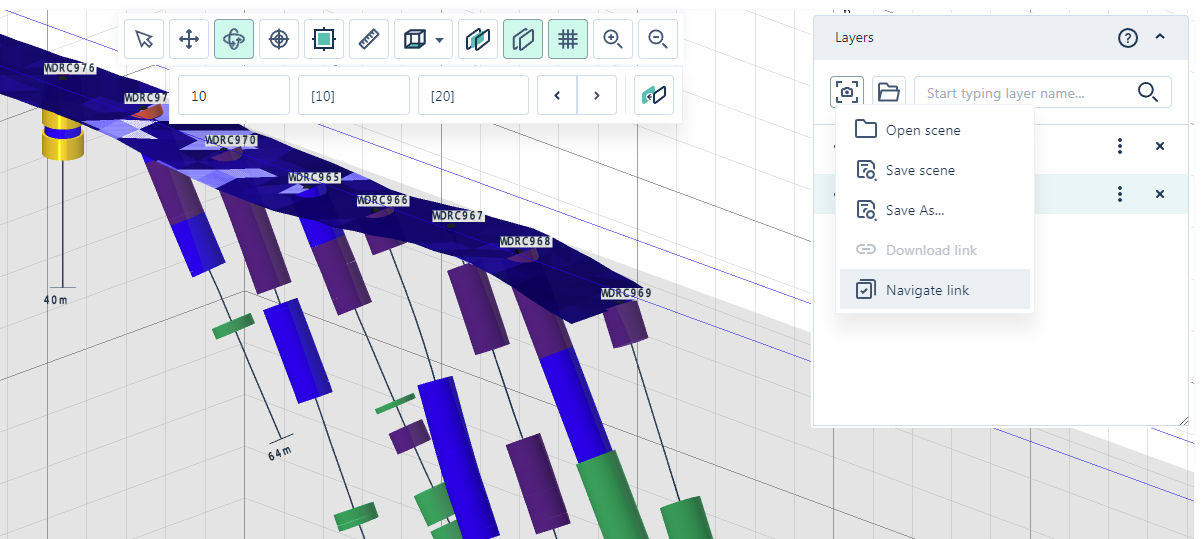
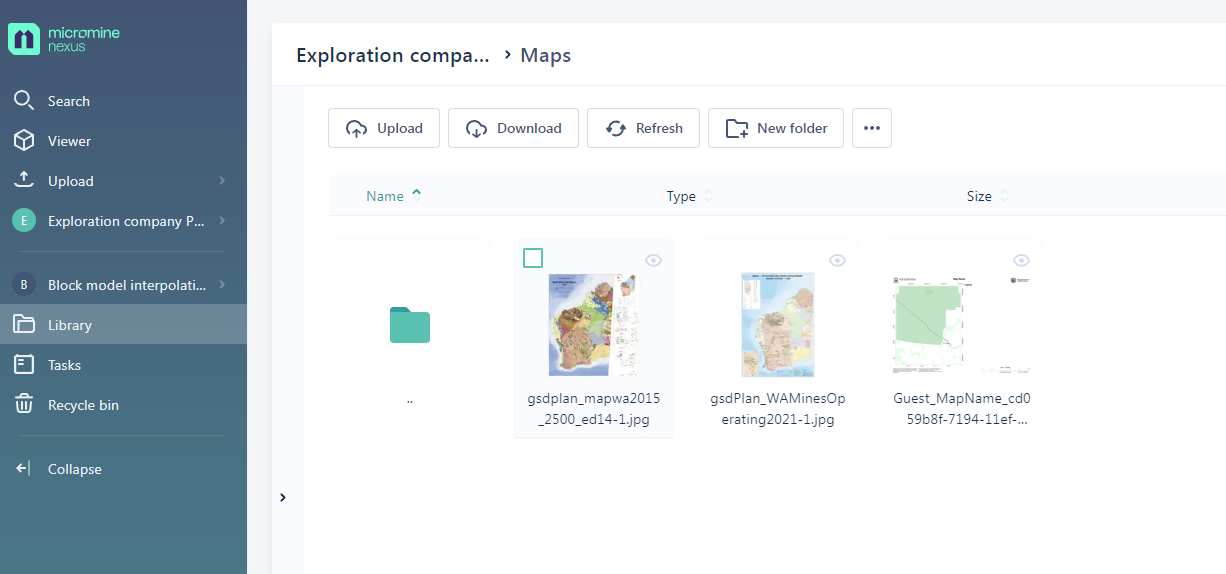
Image Thumbnails: Users can now preview images as small icons in the grid view, simplifying navigation among multiple images such as core photos, maps, or sections.
Switch to Grid view to see your image files displayed as thumbnails.
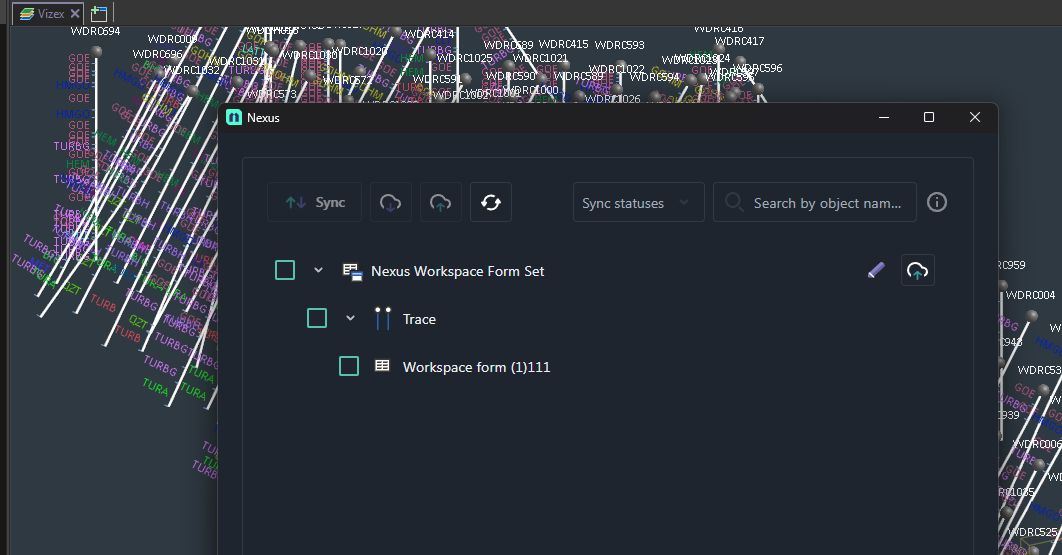
MMO&B Form set Management Improvements: Introducing Workspace (Global) Nexus form sets, making it easier to share form sets across multiple projects. Special permission settings in Nexus Workspace management allow administrators to restrict editing access for some users while granting write permissions to others. The Sync tool now shows original MMO&B form set icons to improve navigation and user experience.
MMO&B 25 supports Nexus Workspace for form sets, making it easy to share form sets across multiple projects.
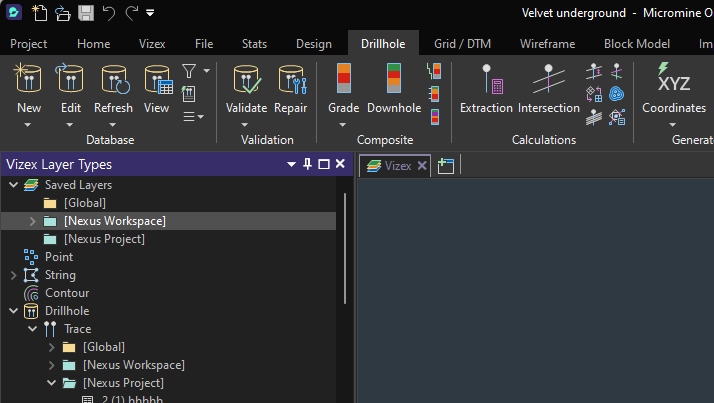
When you save a new form set in MMO&B 25, you can choose the Nexus Workspace tab for storage. This way, the form set will be accessible from multiple projects within the Workspace.
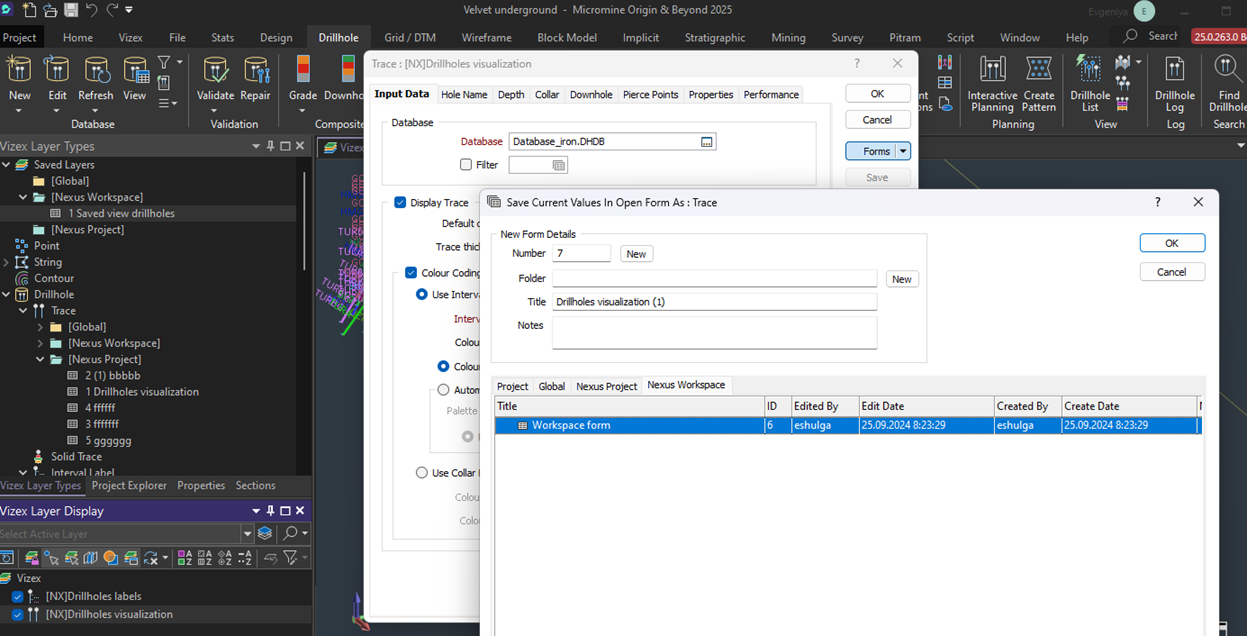
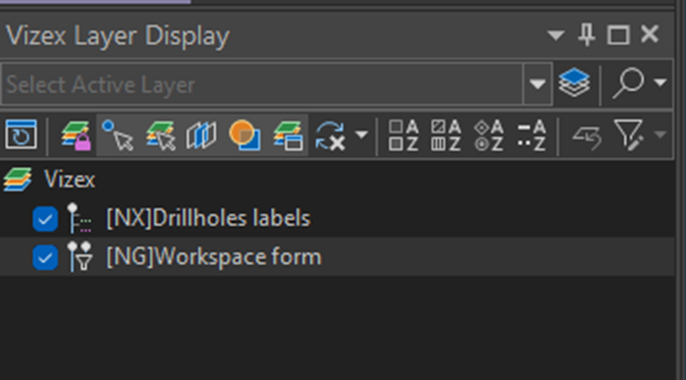
These form sets will have the [NG] prefix to differentiate them from Nexus project form sets, which carry the [NX] prefix in the Vizex layer display window.
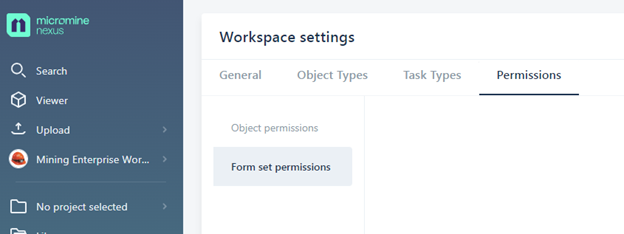
Nexus provides permission settings for Workspace Form sets under Workspace – Permissions.
Additionally, the Nexus Sync applet in MMO&B 25 displays the original MMO&B Form set icons for improved navigation.
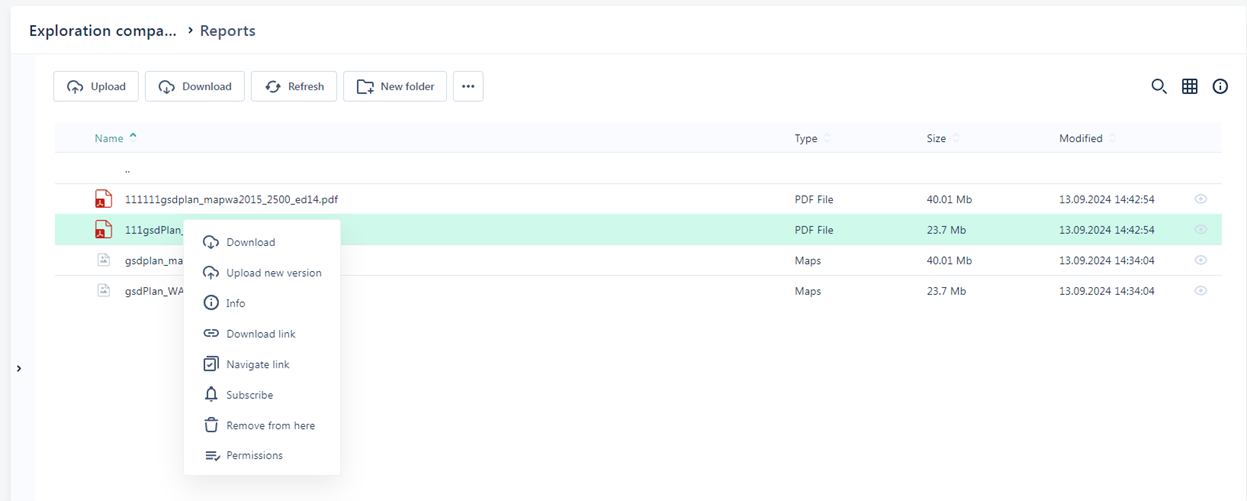
New Context Menu: To enhance the user experience (UX), we've added a context menu to the File Manager, providing quick access to object operations such as downloading, uploading a new version, downloading links, navigating to files, and more.
Now, there is quick access to commonly used functions within the File Manager, consolidating all actions such as Download, Upload New Version, Info, Download and Navigate Link, Subscribe/Unsubscribe, Remove, and Permissions in one convenient location.
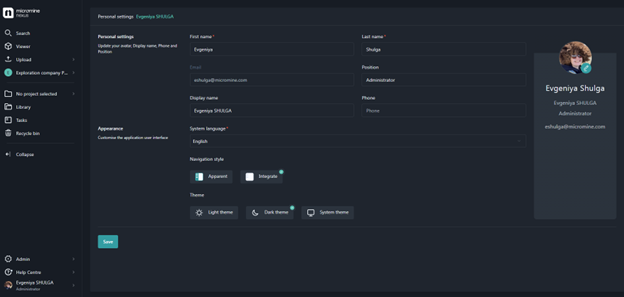
New Dark Theme: A new dark theme has been added to the Personal Settings, allowing users to work in a dark interface within Nexus.
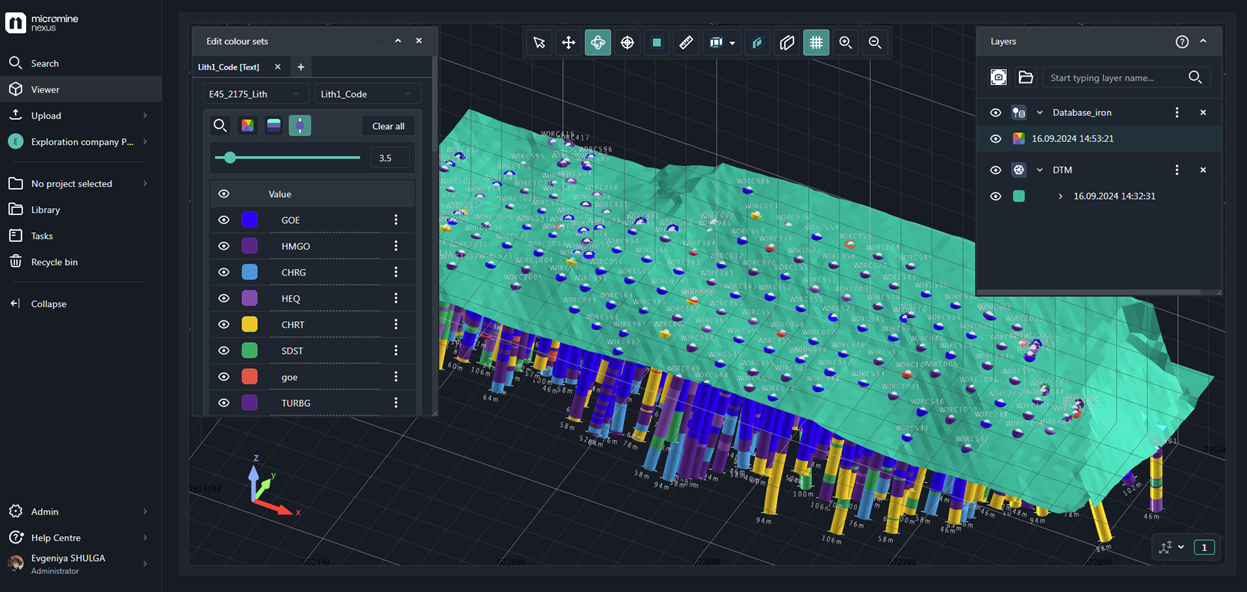
Personal settings include a dark theme mode for users who prefer to work in a dark interface. All Nexus applets, including the Viewer, will also support this dark theme

Comments
0 comments
Please sign in to leave a comment.